
Free to use
For student pilots
Plan the lesson. Fly it. Learn from the debrief.
VectorEFB gives a student pilot one place to plan the route, check the weather and terrain, record the flight from a phone or tablet and read how it compared with the plan. At a school that uses VectorEFB, the instructor sees the same plan and the same flight.
Free, with no card and no advertising. A training and situational awareness aid, not certified for navigation. Screens show a sample school.
What it does
Before the flight, in the air and after the landing
Students plan in the app and send the plan to their instructor. Afterwards the flight can be replayed and compared with the plan. The screens below show a sample school.
01 Plan
Plan the flight and send it to your instructor
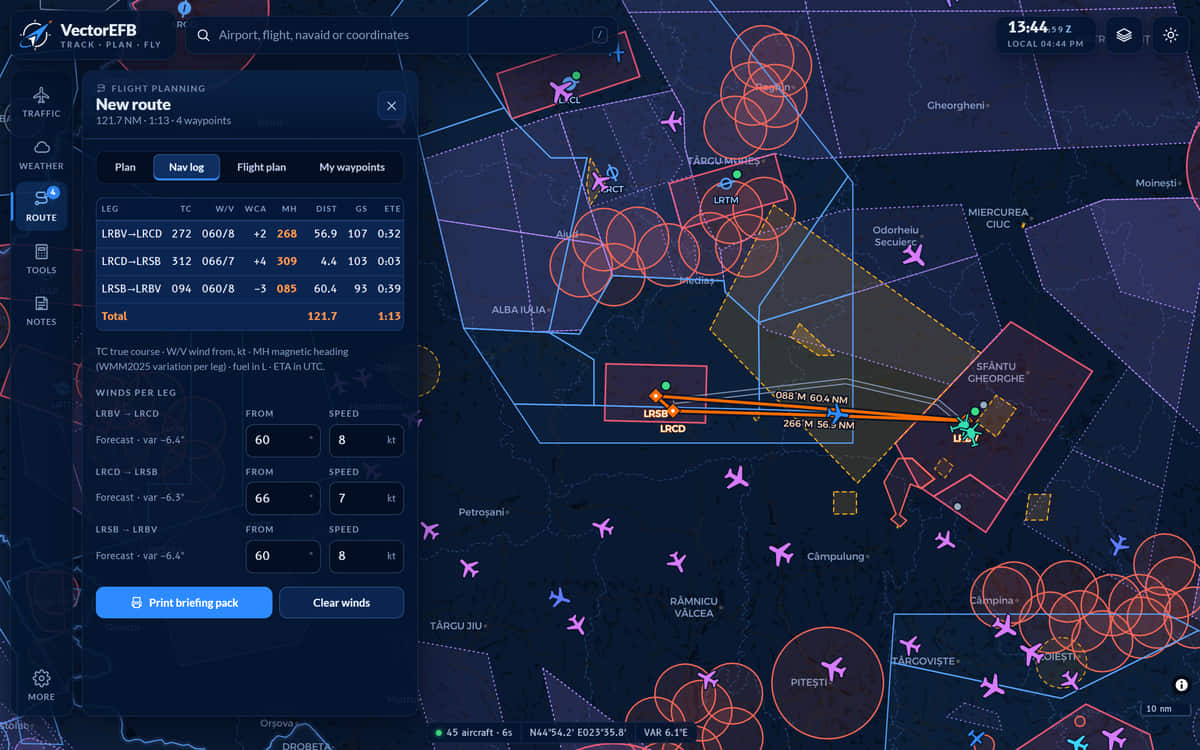
Build the route on the map and the nav log fills in true course, wind correction, magnetic heading, distance, groundspeed, time and fuel. At a school that uses VectorEFB, one button sends the plan to your instructor.
- Forecast winds fetched for each leg
- Print it or export GPX
02 Check
See the warnings before your instructor does
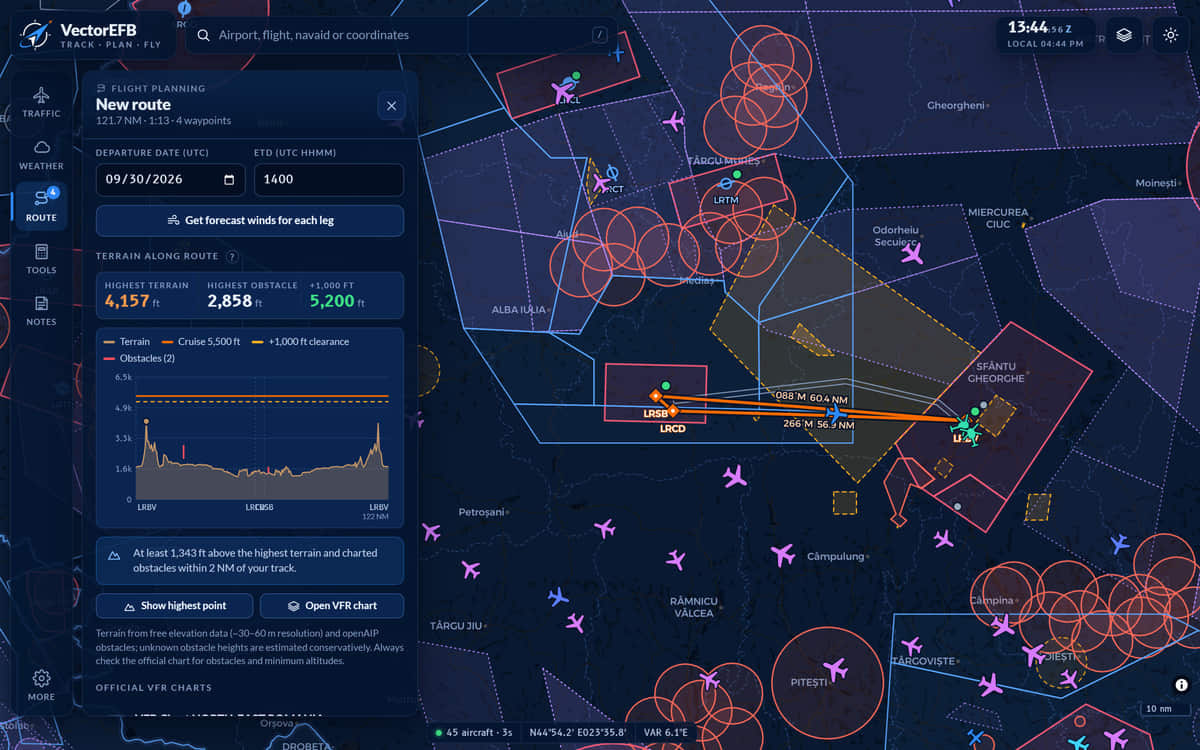
The plan is checked against the school’s own minimums, and you see the same warnings your instructor will: a reserve that is too short, a weather briefing that is too old, a cruise level below the terrain. A side view draws the terrain and obstacles within 2 NM of track against your cruise altitude.
- Six checks: fuel reserve, fuel margin, no weather briefing, stale briefing, cruise below terrain, plan sent too late
The terrain view is built from public elevation models and obstacle data. It is a check, not a clearance.
03 Brief
Brief from the weather, with the time on it
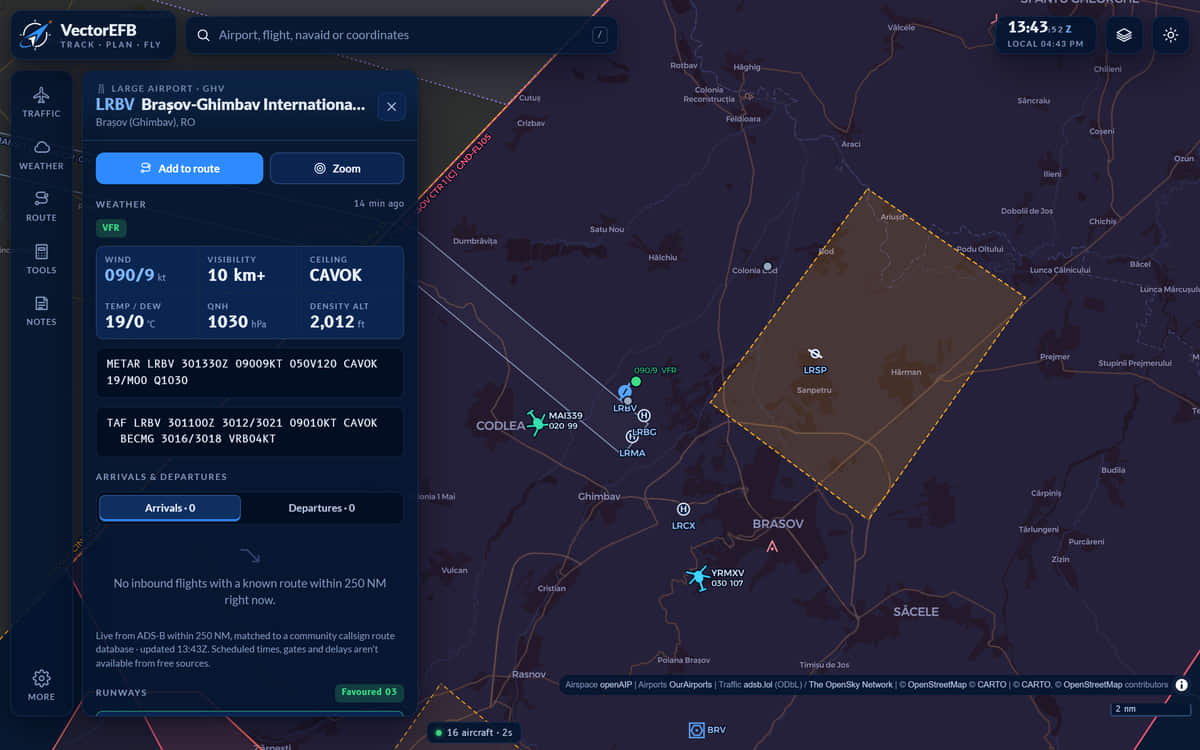
Open any airport for its latest METAR and TAF next to the raw text, each with its observation time, plus runway headwind and crosswind, density altitude and sunrise and sunset. Your instructor can see which briefings you pulled and how old the data was.
04 Record
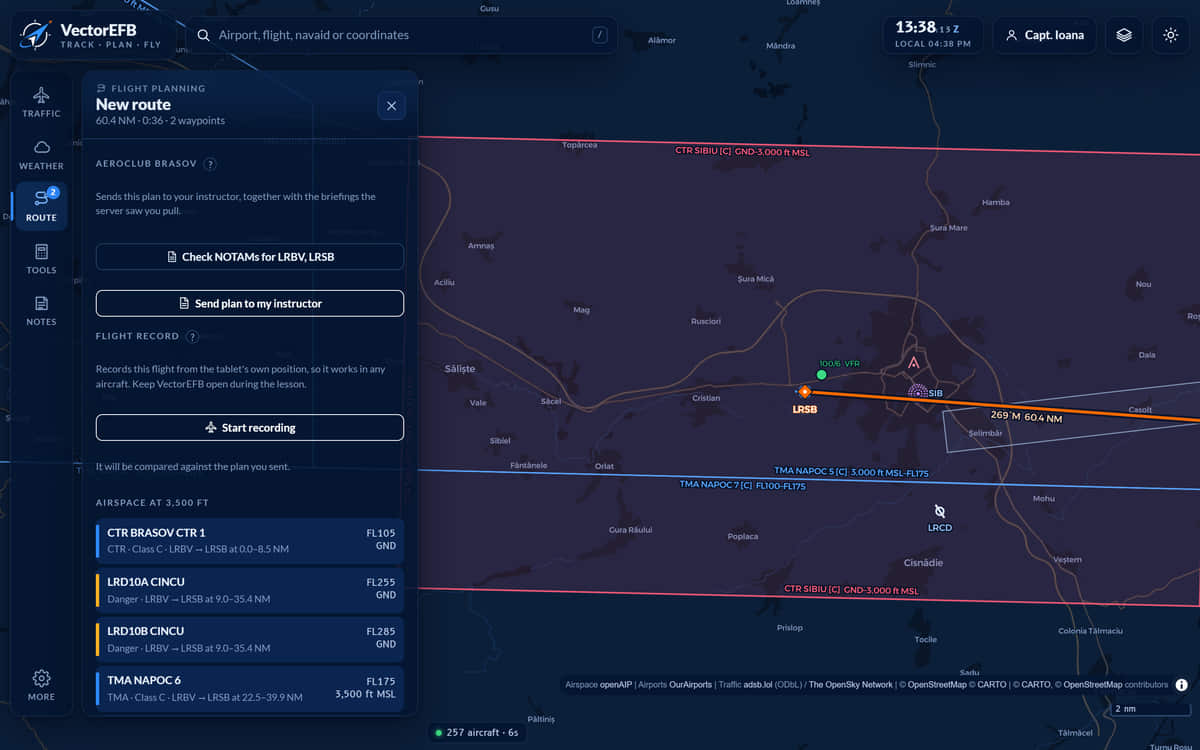
Record the flight from your phone or tablet
In a student account, the Route panel has a Flight record control. It records the flight from the device’s own position and keeps working with no signal. The flight is kept on the device and sent when it is online again. Keep the app open and the screen on.
- Recording starts only when you press Start recording
- Recording uses the device’s GPS. Wi-Fi-only tablets have none.
05 Replay and debrief
Fly the lesson back, then read the debrief
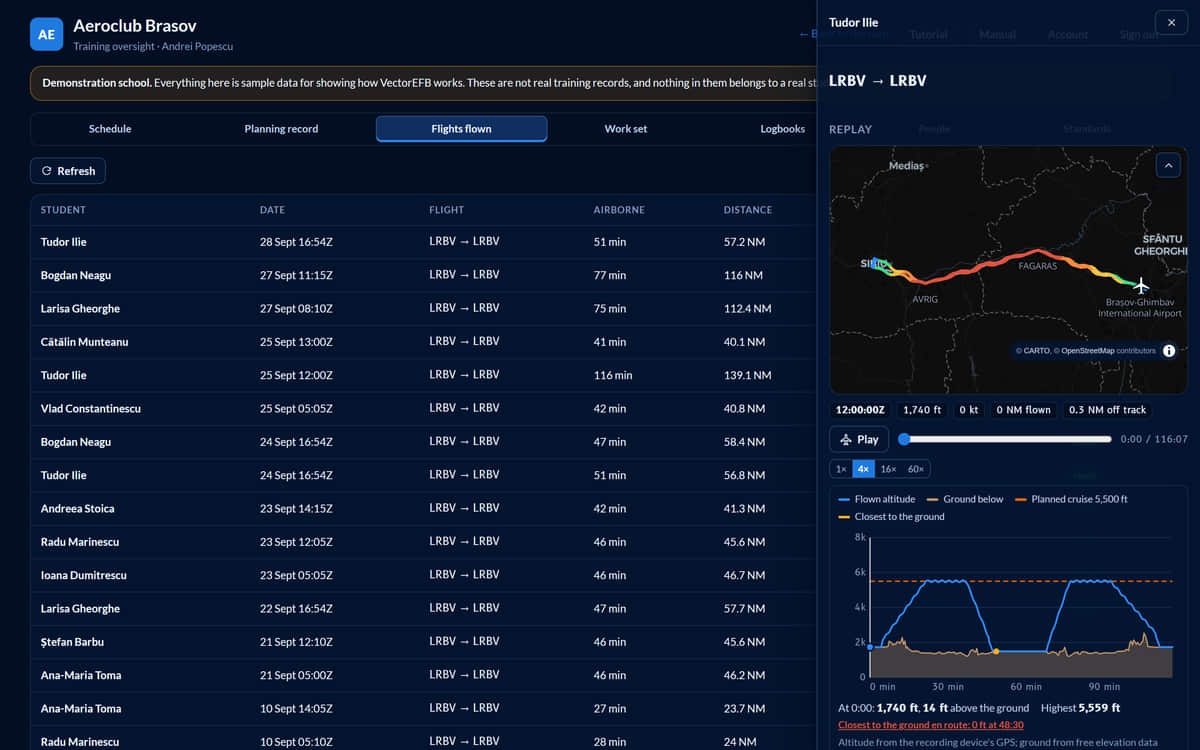
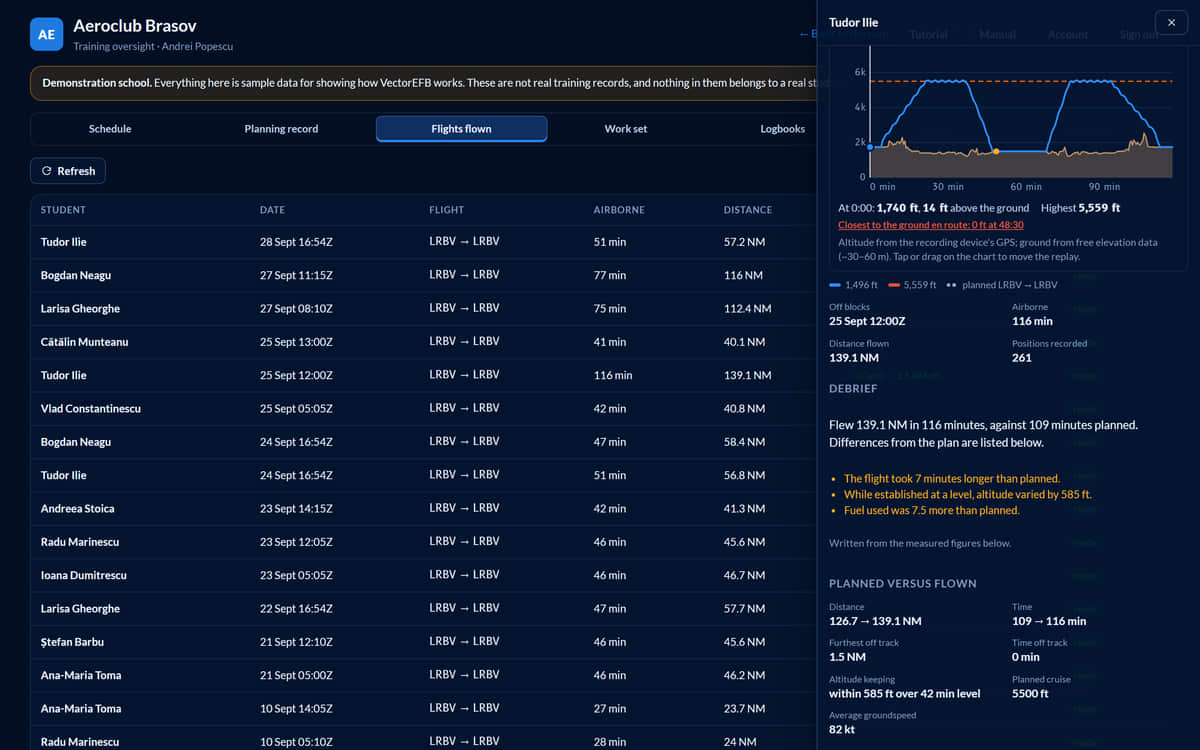
The replay draws the track coloured by altitude, and plots the altitude flown against the planned cruise level and the ground beneath it. Play it at 1x, 4x, 16x or 60x.
When the flight is sent, it is compared with the plan: time, distance, the furthest off track and for how long, how well the cruise level was held, average groundspeed, fuel and any planned waypoint not reached. The written debrief is composed by rules from those measured figures, and no outside service sees the flight, so the words cannot disagree with the numbers.
06 Logbook
A logbook the recording fills in
The logbook is laid out with the columns of an EASA pilot logbook. A recorded flight fills in what it can prove, including night time worked out from the track against civil twilight. It does not guess who was in command, or what was dual or instrument time: you enter those, and your correction always wins. Export as CSV or print.
A convenience copy. The official logbook remains the pilot’s responsibility.

Recording is new. It has been tested in the lab but not yet on a real flight, so keep your usual logbook alongside it while it is proven.
The screens show a sample school with invented people, aircraft and flights. About the screens.
Why choose it
Why students choose VectorEFB
One app before and after the flight
Plan, brief, record, replay, read the debrief and keep the logbook in the same app. The map, weather, terrain check and 12 calculators are in it too.
The same record as your instructor
At a school that uses VectorEFB, you and your instructor look at the same plan, briefing and flight, so the debrief starts from what was measured.
A debrief from measured figures
Time, distance, furthest off track, cruise level held and fuel are compared with your plan, and the written debrief is composed from those figures. No outside service sees the flight.
No surprises at the briefing
You see the same warnings your instructor will, before the lesson: a short reserve, an old weather briefing, a cruise below the terrain.
Works at the airfield with no signal
A plan or booking made without a signal waits on your device and sends when the signal returns. Downloaded map areas, the route and the calculators work offline too.
Free, with no advertising
Free of charge today. If we ever add paid plans you will see the price before you agree to anything, and free features get 30 days’ notice before they end. No advertising, analytics or tracking cookies.
Your school is not on VectorEFB yet? An account made here keeps your own plans and recorded flights, and no flight school sees them. Your school already uses it? Ask for its invitation code, or sign in to your school.

Private pre-launch
Request access
Plan your next lesson, record the flight and read the debrief, all from one account.
- Free. No card, no advertising.Free of charge today. If we ever add paid plans you will see the price before you agree to anything, and free features get 30 days’ notice before they end.
- Plan, brief, record, replay and keep a logbook in one place
- Flights you record are kept in your accountRecording is new. Keep your usual logbook alongside it.
- Download or delete your data from Settings, whenever you like
- No ads
- No tracking cookies
- 16 and over
Request access
It takes about a minute. We approve each person by hand.
Thank you
We have your request. VectorEFB is in private pre-launch and we approve each person by hand. We will email when you are in, with a link to choose your password.
Already approved? Sign in
You must be 16 or over to ask for access yourself. If you are younger, your flight school can set up an account for you. Nothing is created until we approve your request. When we do, you are placed in a school that VectorEFB runs or one you belong to, and we can see what is stored in your account, to run the service and to help you, and for nothing else. Details are in the privacy notice.
Already have an account? Sign in
For training and situational awareness only. Not certified for navigation. Always use official charts, the AIP, NOTAMs and a proper weather briefing for real flights.
Screens on this page show a sample school with invented data. Data sources and known limits.